Quote to Invoice Software: What to Look For Before You Choose
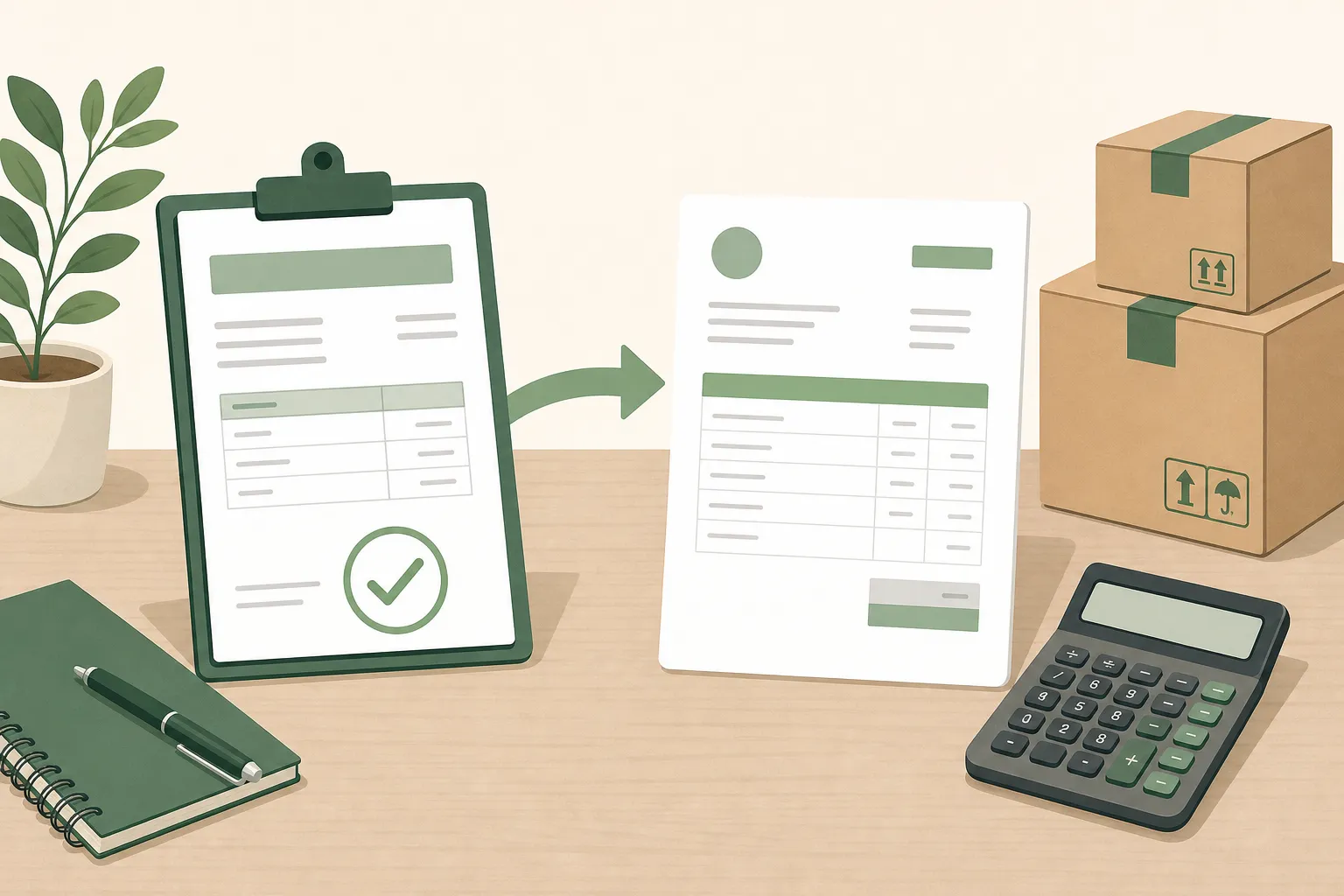
The customer says yes to your quote. Now someone has to open a new document, copy the customer’s name, retype every line, check the prices against the quote, and send an invoice. If that “someone” is you, on a Friday afternoon, this is exactly where small mistakes get in: a product left out, an old price, the wrong date, a discount that disappeared on the way.
Quote to invoice software exists to remove that retyping. The quote becomes the invoice, and nothing has to be copied by hand. But tools that say they do this are not all alike, and the differences only show up once you have a real order in front of you. This guide covers what the step involves, where it usually goes wrong, and what to check before you choose.
What “quote to invoice” actually means
At its simplest, it means that when a quote is accepted, you can create the invoice from that same record. The customer, the lines, the quantities and the prices come across as they were. You are not starting a second document from scratch.
Behind that sentence there are a few separate things, and it helps to keep them apart:
- The link between the two documents. Can you see, from an invoice, which quote it came from, and from the quote, whether it has been invoiced?
- What is carried over. Customer details, lines, discounts, notes and terms, or only a total?
- What you can change on the way. Real orders rarely match the quote line for line.
- What happens to the quote afterwards. Does it close, stay open, or show up as “pending” forever?
Where mistakes happen when you do it by hand
If you quote in Excel or Word and invoice somewhere else, the step between the two is usually manual. These are the most common errors:
- The old customer’s name or date stays in the document. You reuse a previous file and forget to change one field.
- A product or price is wrong. The invoice shows something different from what the customer accepted, and now you are explaining a difference instead of collecting payment.
- An accepted quote never gets invoiced. It sits in a folder, and nobody notices until the end of the month.
- Nobody can tell what is still open. Which quotes were accepted, which were invoiced, and which are still waiting for an answer?
None of these is hard to fix on its own. The problem is that they repeat, one order after another, and each fix takes time you would rather spend selling.
What to check before you choose
Try a real order, not the demo example. Here is a short checklist.
1. Can you invoice straight from the quote?
This is the basic test. Open an accepted quote and create the invoice without retyping anything. Then compare the two: same customer, same lines, same prices, same terms.
2. Can you change the invoice when the order changes?
Customers ask for fewer units, add an item or split a delivery. Check that you can adjust quantities or lines on the invoice while keeping the connection to the original quote.
3. Does it handle more than one currency?
If you quote in one currency and invoice in another, find out how the exchange rate is set, when it is updated, and whether the conversion shows inside the document. Doing this by hand in a spreadsheet is a common source of mismatches.
4. Are prices controlled?
If your team can edit prices freely, mistakes will follow. Look for a product catalog with price lists, and for the option to keep costs hidden from the people who sell.
5. Is there an approval step when you need one?
Some quotes should be reviewed by the owner or a manager before they go out. If your business works that way, check that the tool supports it and does not rely on a message in a chat.
6. Can you tell what is open, accepted and invoiced?
At the end of the month you should be able to answer, without a spreadsheet: how many quotes went out, which ones were accepted, and which ones were invoiced. If the tool can’t show you that, you will rebuild the list by hand.
7. Does it help you follow up?
A quote that sits without an answer is lost revenue. The best setups keep the quote, the follow-up and the invoice in one place, so you know who was contacted and who was not.
8. Does it match how your team works?
Cost per user, extra charges for another currency or a different document format, and how long it takes to get a new person started all matter more for a team of ten than for one person. Ask these questions during the demo.
A small example
Say you distribute products to a handful of regular customers and each order starts with a quote. A customer accepts on a call. With a manual process, you open the Excel file, save a copy, change the name and date, then fix the lines that changed during the call, and send it as an invoice. With a tool that works from the quote, you open the quote, adjust the lines that changed and issue the invoice from there. The customer sees one consistent set of documents, and you can see afterwards what was quoted and what was invoiced.
Where QuoteMasterPro fits
QuoteMasterPro is built for small distribution businesses that are tired of quoting in Excel and Word. It lets you build quotes, send them as a PDF with your logo and colors, and follow them up, and it includes invoicing and sales reports in the same place. For teams that quote in more than one currency, it updates the exchange rate automatically twice a day and converts the amounts inside the quote. It also lets you keep costs out of your salespeople’s view, and set up internal approval of quotes before they go out.
If you want to see whether it fits how your team works, take a look at the features and bring a real order to the demo.
A quick summary
- Quote to invoice software means issuing the invoice from the accepted quote, without retyping it.
- The mistakes it prevents are small but frequent: an old date, a wrong price, a quote that never gets invoiced.
- Test it with a real order, and check the link between documents, changes, currency, price control, approvals, follow-up and reporting.
- Choose the tool that matches how your team actually quotes and invoices, not the one with the longest feature list.